

LinkedIn Banner Maker
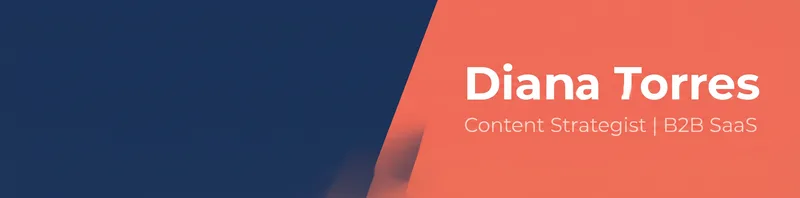
Your LinkedIn banner is the widest piece of real estate on your profile. PiCraft designs one at the exact 1584×396 px size with your name and headline placed where they stay visible.
The left side is kept calm on purpose: that's where your profile photo sits on desktop and mobile.
- Step 1
Enter your name and headline
Or your company name and tagline.
- Step 2
Choose a look
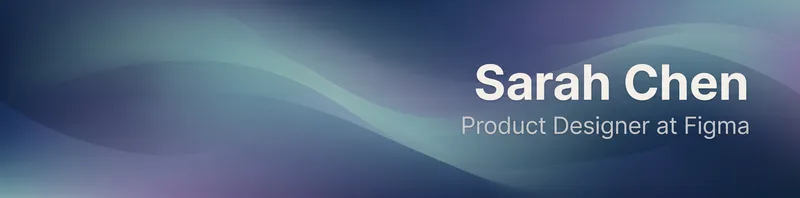
Gradient, tech, skyline, nature or workspace, in your colors.
- Step 3
Upload to LinkedIn
Edit your profile, click the camera icon on the banner and upload the JPG.
Made with the LinkedIn Banner Maker
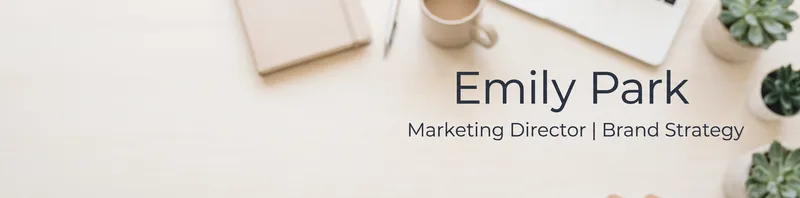
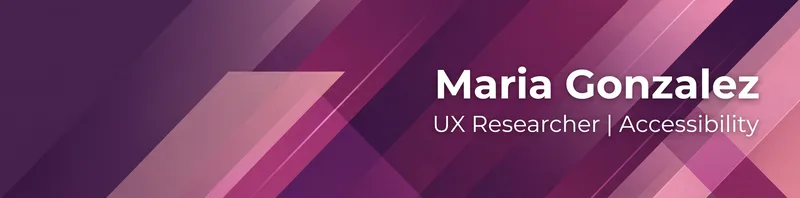
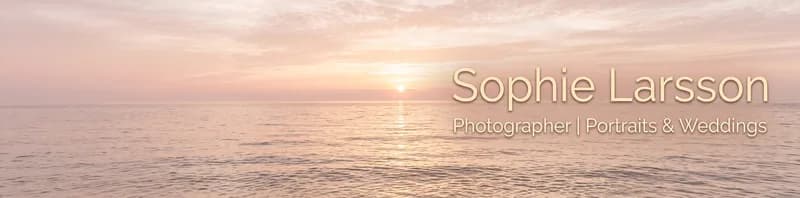
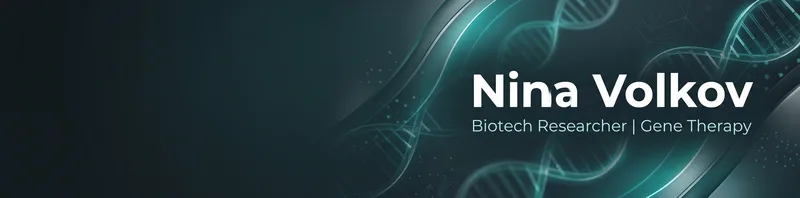



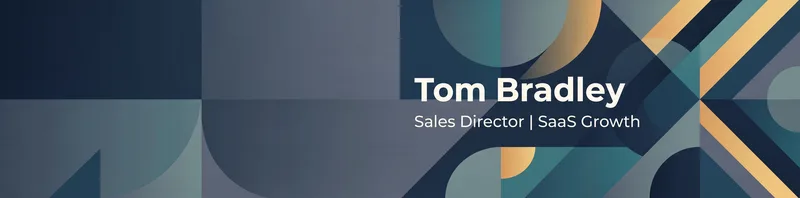
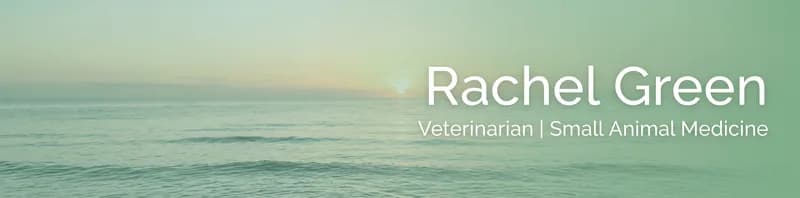
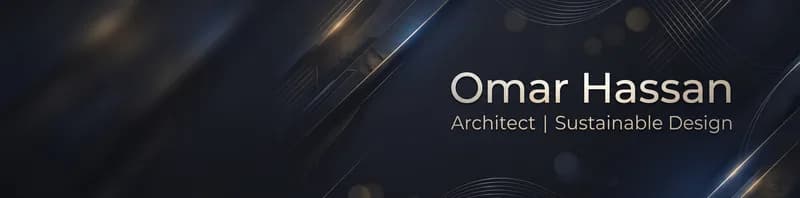
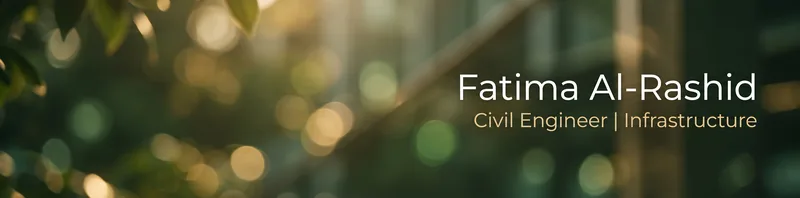
How the LinkedIn Banner Maker works
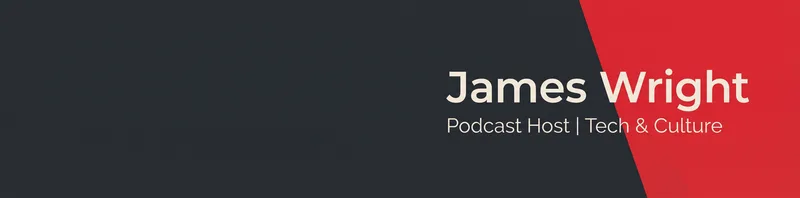
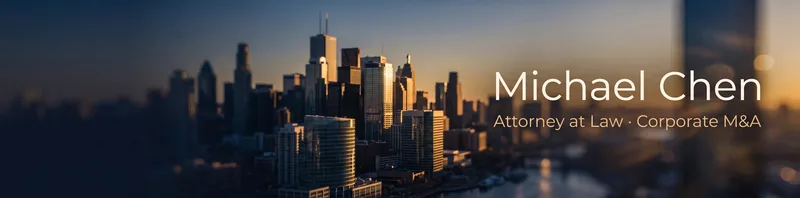
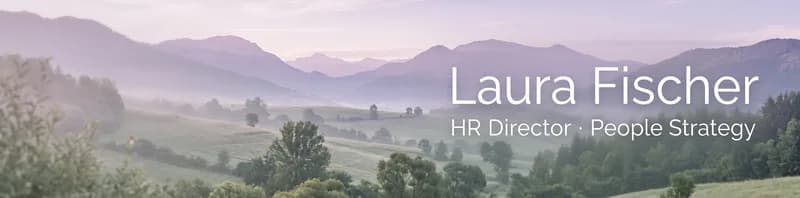
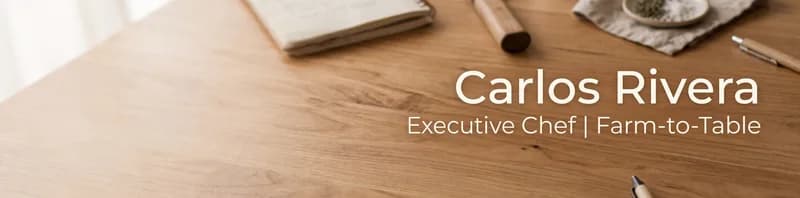
Enter your name or brand and, if you like, a one-line headline. Choose one of ten looks and a color direction, and PiCraft designs a very wide banner at LinkedIn's recommended 1584×396 px, with your text placed in the right half.
The text sits on the right because LinkedIn draws your profile photo over the lower-left of the banner, and it crops the banner a little differently on mobile. The left third is kept calm and free of important details for the same reason.
You download the banner as a JPG, plus a 3168×792 px version at twice the size for sharp display on high-resolution screens.
What you get with the LinkedIn Banner Maker
1584×396 px banner
A JPG at LinkedIn's recommended cover image size and 4:1 ratio, well under the file size limit.
A 2× high-resolution copy
A 3168×792 px JPG for crisp results on large and high-density screens.
Text placed to survive cropping
Your name and headline sit in the right half, away from the profile photo and the mobile crop.
Ten looks
Gradients, skylines, nature, workspaces, geometric shapes and more, to fit your industry.
Your colors
Add a color direction such as "navy and teal" to match your brand or your profile photo.
LinkedIn background photo specs
| Requirement | Value |
|---|---|
| Recommended size | 1584×396 px (4:1) |
| File types | JPG or PNG |
| Maximum file size | 8 MB |
| Profile photo overlap | Lower-left area on desktop, center-left on mobile |
- LinkedIn crops the banner slightly differently on mobile, so PiCraft keeps text in the right half.
What people use the LinkedIn Banner Maker for
Job seekers
A clean banner with your name and a short headline makes a profile look finished and intentional.
Freelancers and consultants
Use the headline to state what you do and who you do it for, so visitors understand your offer at a glance.
Founders and small businesses
Reflect your brand colors on a founder profile that people see after meeting you or reading your posts.
Creators and speakers
Show your name and topic with a style that matches your content, whether calm, premium or energetic.
Recruiters and sales teams
Give a team a consistent look by using the same style and colors for every profile.
Tips for better results
- 1
Say what you do, not just who you are
"Product designer · Helping fintech teams ship faster" tells a visitor more than a job title alone.
- 2
Keep the headline short
Under 60 characters keeps the text large enough to read on mobile.
- 3
Match your profile photo
Pick colors that work with your photo's background and clothing, so the banner and portrait look like a set.
- 4
Choose calm over busy
Text over a busy image is hard to read. Soft gradients, bokeh and solid blocks give the cleanest result.
- 5
Preview on desktop and mobile
After uploading, check your profile on both. The banner is cropped differently on each.
- 6
Use your own brand colors
Name two colors in the colors field, such as "deep green and cream", to keep the banner consistent with your website.
- 7
Refresh it occasionally
Update the headline when your role or focus changes so the banner stays accurate.
Choosing a banner look
The look sets the background. Pick the one that fits your industry and the impression you want to leave.
- Soft gradient
- A smooth blend of two colors. Works for nearly every profession.
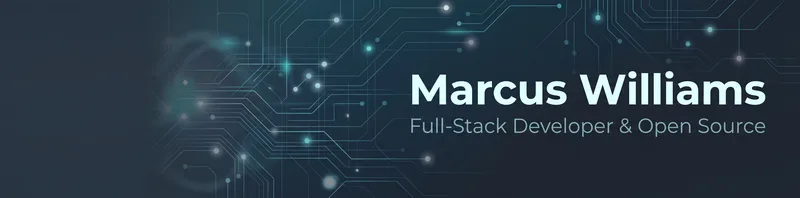
- Abstract tech
- Flowing lines and digital patterns. Fits software, data and product roles.
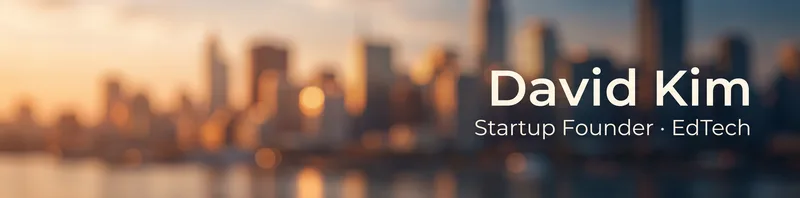
- City skyline
- Urban silhouettes. Fits real estate, finance, law and consulting.
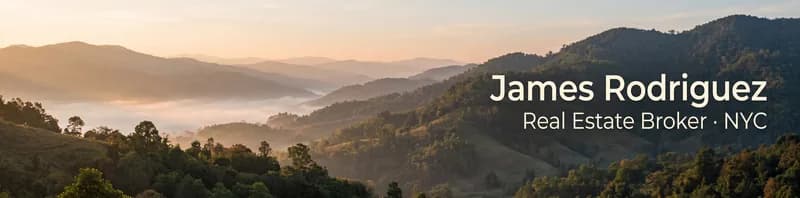
- Calm nature
- Soft landscapes. Fits coaching, wellness, sustainability and education.
- Desk & workspace
- A tidy desk scene. Fits designers, writers and freelancers.
- Geometric shapes
- Clean shapes and angles. Fits architects, engineers and designers.
- Ocean & waves
- Open water and movement. Fits travel, hospitality and leadership profiles.
- Dark & premium
- Deep tones with subtle highlights. Fits luxury, strategy and executive profiles.
- Soft bokeh lights
- Blurred light points. Fits event, media and creative roles.
- Solid color block
- A flat color with the text on top. The most readable option and the easiest to match to a brand.
Before you upload to LinkedIn
- Check that your name is spelled correctly. It is the one word that must be right.
- Upload the 1584×396 px file first, and use the 3168×792 px version if the banner looks soft on large screens.
- Open your profile on a phone and on a computer to confirm that the text is not covered by your photo.
- Make sure the headline matches the headline and About section of your profile, so your story is consistent.
- Keep the file under 8 MB. The files PiCraft exports are well below that.
- Use JPG or PNG. LinkedIn's help page lists these as the supported types.
- Reposition the banner in LinkedIn's editor if your text sits too close to an edge.
What the LinkedIn Banner Maker can't do
- The banner is designed for personal profiles. LinkedIn company pages use a different cover size.
- Your profile photo covers part of the lower-left, and mobile crops the sides, so the maker cannot keep every pixel visible on every device.
- The text is part of the image. To change a word, generate again.
- The maker does not add logos or photos of you. Upload those in LinkedIn or an editor afterwards.
- The name field is required, so every banner has a focal text. A short slogan can take the place of a name.
Official guidelines
The sizes and rules above follow these official pages. Platforms change their requirements, so check the source before you submit your file.
Frequently asked questions
What size is a LinkedIn banner?+
LinkedIn recommends 1584×396 px, a 4:1 ratio, as a JPG or PNG up to 8 MB. PiCraft exports that exact size plus a 3168×792 px version at twice the size.
Why is the text on the right?+
Your profile photo covers the lower-left part of the banner, so text placed there gets hidden.
Does it work for LinkedIn company pages?+
No. Company pages use a different, wider cover size, so this maker is built for personal profiles. Check LinkedIn's current specifications for the cover size of a Page.
Can I leave the text out?+
The name field is required so the banner has a focal point, but you can enter a short slogan instead of your name.
Will my profile photo cover the text?+
The text is placed in the right half, away from the profile photo. LinkedIn crops the banner differently on mobile, so check your profile on both a phone and a computer after you upload.
How long should the headline be?+
Under 60 characters keeps the text large enough to read. Write a short line about what you do and who you help.
Can I use my brand colors?+
Yes. Type colors such as "navy and teal" in the colors field. For an exact hex code, name the closest color and fine-tune it in an image editor.
How do I change my banner on LinkedIn?+
Open your profile, click the camera icon on the banner, choose Change photo and upload the JPG. Reposition it in the editor if you need to.
Does the banner include a photo or logo?+
No. It is a designed background with your name and headline. Add your photo and logo to your profile separately.
Last updated:
More makers

YouTube Thumbnail Maker
Click-worthy 1280×720 thumbnails with bold headline text, optionally featuring your face.
Business Card Maker
Enter your name and contact details, get a designed business card as a print-ready PDF in US or EU size.
Book Cover Maker
Genre-appropriate front covers for Kindle eBooks and 6×9 paperbacks.